Voice Journaling: Converting Speech to Structured Behavior Data
Journal entries are the foundation of VillageMetrics. Through voice recordings, you capture the details of your child's daily experiences, which are then transformed into actionable behavioral insights through AI analysis.
Understanding Journal Entries
What Makes a Good Journal Entry
Think of journal entries as telling the story of your child's day or a specific experience. The more context and detail you provide, the better the AI can identify patterns and generate useful insights.
Key Elements to Include:
- Activities: What your child did during the day
- Behaviors: Both challenging and positive behaviors observed
- Context: What was happening before, during, and after significant events
- People: Who was involved or present
- Environment: Where activities took place
- Strategies: What worked or didn't work
- Child's emotional state: How your child seemed to be feeling
- Physical factors: Sleep, hunger, illness, medication timing
The Voice-First Approach
VillageMetrics is designed around voice input because:
- Faster than typing: Speak naturally instead of composing text
- More detail: People naturally include more context when speaking
- Convenient: Record while driving, walking, or during downtime
- Natural: Feels like talking to a friend about your child's day
Creating Journal Entries
Accessing the Recording Interface
Multiple Ways to Start:
- Tap "Add a journal entry" button on home screen
- Tap the "+" icon in the bottom navigation
- Use quick access from push notifications
Pre-Recording Screen
Before you start recording, you'll see helpful guidance:
Key Reminders:
- No need to be perfect - speak naturally
- Include as much detail as you remember about your child's day
- AI will create clean, accurate text and smart summaries
- No editing needed on your part
Selecting the Time Period:
By default, entries are recorded for "Today" - and for most people, that's all you need. Just record your entry and don't worry about this setting.
However, if you forgot to journal yesterday or need to backdate an entry (for example, a therapist recording notes for yesterday's session), you can use the dropdown selector to choose:
- Today (default): For your current day's entry
- Yesterday: If you forgot to record yesterday
- 2 days ago: If you're catching up from two days ago
- Another time period: For entries covering longer periods or other timeframes
Note: If your entry describes multiple days (like "over the weekend"), just leave it set to "Today" - the AI will understand your entry covers a longer timeframe.
Technical Details:
- Recording limit: Up to 10 minutes per entry
- Can add multiple entries per day
- High-quality voice transcription service (much better than standard phone transcription)
Recording Your Entry
Getting Started:
- Tap "Start Recording": Red recording indicator appears
- Speak Naturally: Talk as if telling a friend about your child's day
- Think Out Loud: Don't worry about perfect organization - the AI will structure it
- Include Details: More context leads to better insights
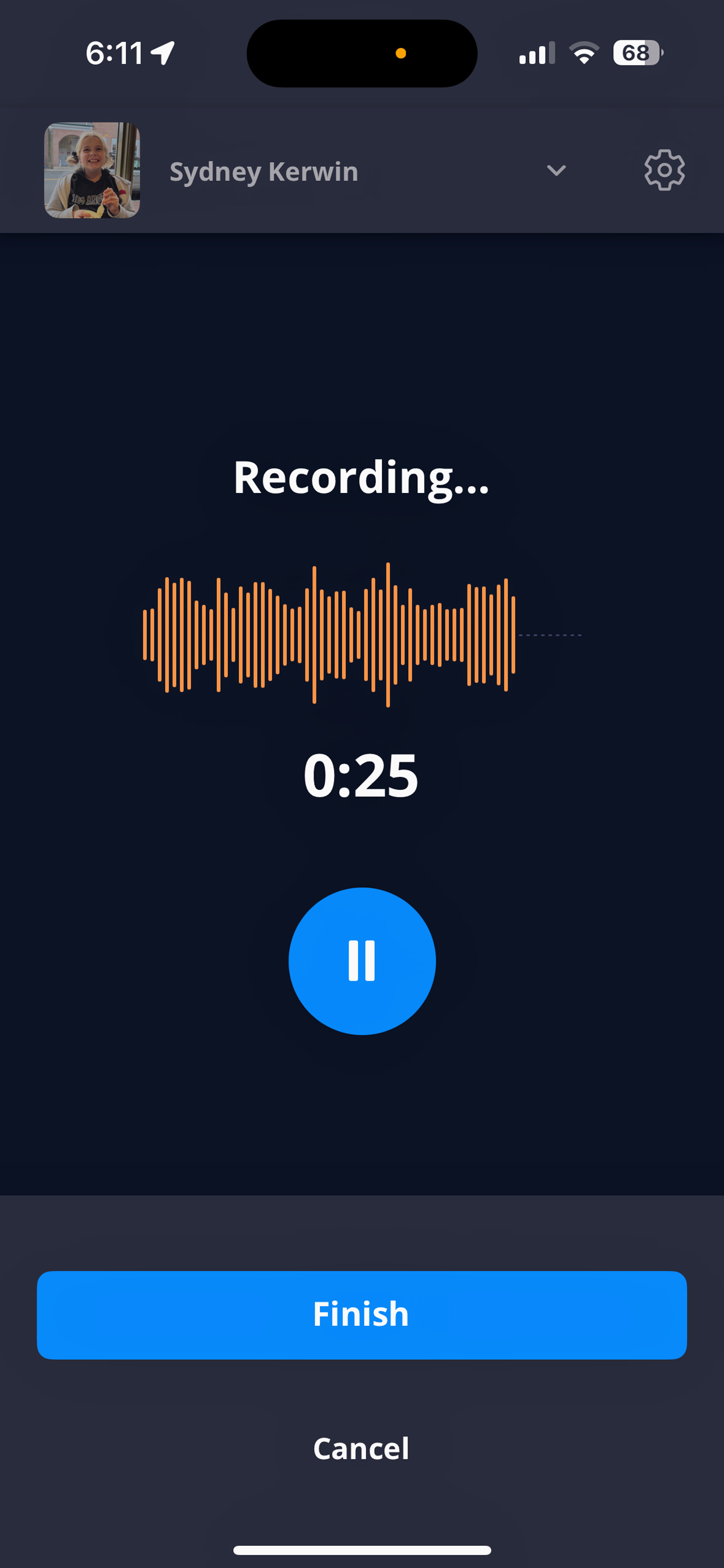
The recording screen shows real-time audio visualization and a timer while you record your journal entry
Recording Tips:
- Speak Clearly: Normal conversational pace works best
- Don't Self-Edit: If you make a mistake, just keep going - AI will clean it up
- Use Names: Say your child's name and caregiver names naturally
- Include Time References: "This morning," "after lunch," "during bedtime routine"
Recording Controls:
- Pause Button: Available if you're interrupted (doesn't end the entry)
- Stop and Save: Completes the entry and begins AI processing
- Cancel: Discards the recording without saving
Time Limit and Multiple Entries
10-Minute Limit:
- Recording automatically stops and saves at 10 minutes
- App will warn you as you approach the limit
- Most entries are 2-5 minutes - plenty of time for comprehensive coverage
Multiple Entries Per Day:
- Add separate entries for different parts of the day
- Useful for ABA therapists (record after each session)
- Parents might record morning routine, then evening summary
- Each entry is analyzed separately but contributes to overall patterns
Voice Transcription Quality
Professional-Grade Service:
VillageMetrics uses premium voice transcription that's significantly more accurate than standard phone transcription services.
What This Means:
- Rarely need to worry about transcription errors
- Handles natural speech patterns, pauses, and "ums"
- Recognizes child names, caregiver names, and common therapy terms
- You won't see the raw transcription - AI cleans it first
AI Text Cleanup:
- Removes filler words ("um," "uh," unnecessary pauses)
- Improves grammar and sentence structure
- Preserves your meaning and all important details
- Creates readable text without changing your intent
After Recording: AI Processing
Processing Time
- Typical Duration: About 30 seconds average
-
What's Happening: Multiple AI analyses running simultaneously:
-
Voice transcription and text cleanup
- Behavior score calculation for each goal
- Hashtag identification and categorization
- Insight generation and pattern recognition
- Summary creation and key moment identification
If Processing Takes Longer:
- 1-2 minutes is normal during high usage periods
- Spinning "Analyzing your entry" indicator shows progress
- App remains usable during processing
- You'll see the completed entry in your feed when ready
What Gets Created
Every journal entry generates:
- Clean Transcript: AI-improved version of what you said
- Short Summary: One-sentence overview (appears in feed and notifications)
- Behavior Scores: Ratings for each behavior goal (1-4 scale)
- Hashtags: Automated categorization of content
- Key Insights: Analysis of patterns, strategies, and outcomes
Viewing and Managing Entries
Feed Display
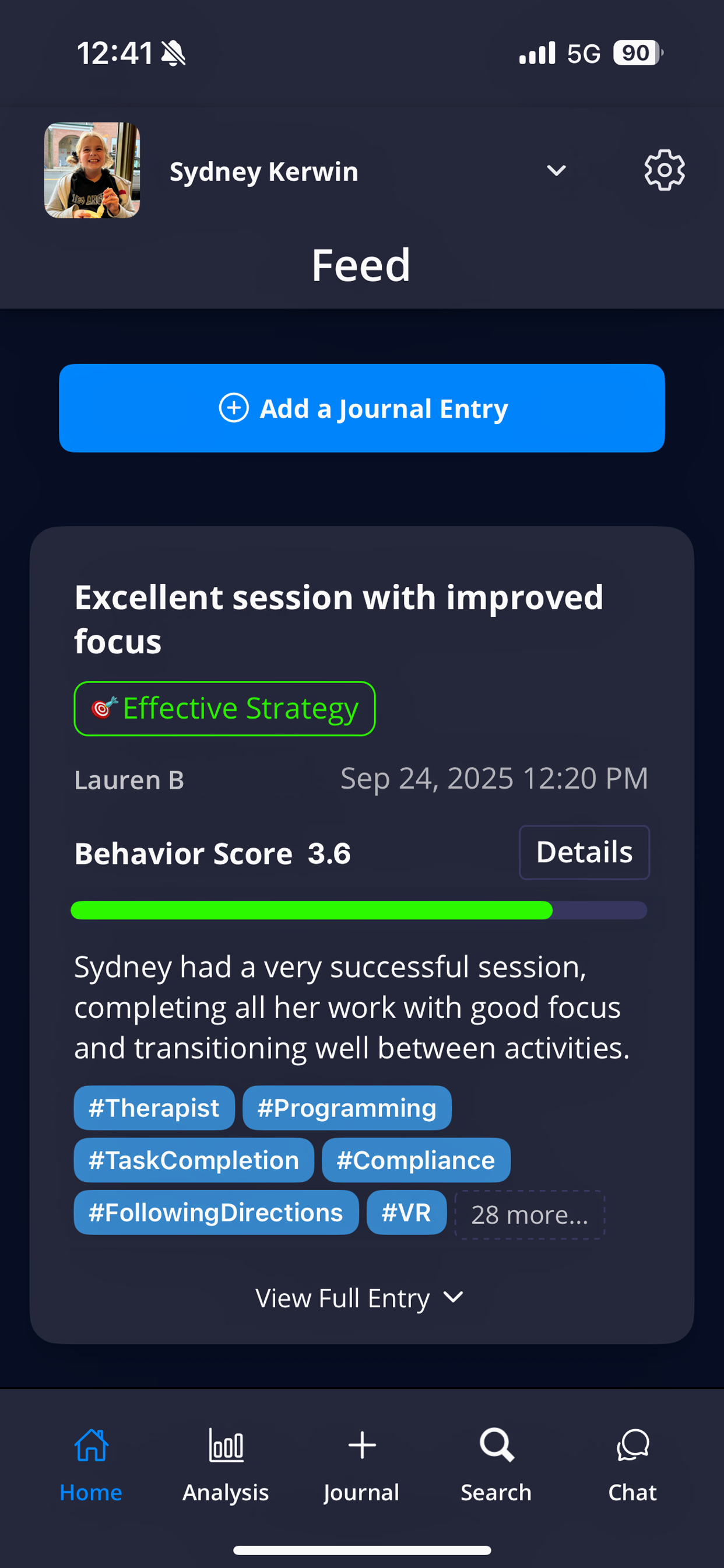
Journal entries appear in your feed with AI-generated summaries, behavior scores, and relevant hashtags
Entry Layout:
- Title: AI-generated short summary
- Author: Who created the entry
- Date/Time: When entry was recorded
- Behavior Score: Overall score (average of all behavior goals)
- Top Hashtags: Most relevant tags (up to 6 shown, with "show more" for additional)
- Action Buttons: View details, edit (if yours), copy to clipboard
Badge System:
Special badges appear for notable entries:
- 🔑 Key Moment: Significant events or breakthroughs
- ❤️ Heartfelt: Emotionally meaningful content
- 😄 Funny: Humorous or joyful moments
- ✅ Effective Strategy: Successful interventions or approaches
- 😍 Cute: Adorable or endearing behaviors
Detailed Entry View
Transcript Tab:
- Full AI-cleaned transcription of your entry
- Easy to read, with proper grammar and structure
- "Undo AI edits" button at bottom shows original raw transcription (rarely needed)
Chapters Tab:
- Entry organized into logical sections with subheadings
- Helpful for longer entries - scan headings to find specific topics
- Makes it easier to review without reading entire transcript
Insights Tab:
- BCBA Analysis: AI-generated professional perspective on the entry
- Identified Challenges: Key difficulties noted in the entry
- Notable Successes: Positive outcomes and achievements highlighted
- Caregiver Hypotheses: Theories or explanations mentioned in the entry
Editing and Adjusting
What You Can Edit:
- Your own entries only: Cannot modify other caregivers' entries
- Behavior scores: Adjust individual goal ratings if you disagree with AI
- Score reasoning: View AI's explanation for each score
Behavior Score Details:
- Individual Goals: See score for each behavior goal separately
- AI Reasoning: Up to 2 bullet points explaining why AI selected each score
- Manual Override: Change any score from 1-4 or mark as "Not Applicable"
- Overall Impact: Changes immediately reflected in analysis
Copy to Clipboard Feature
What Can Be Copied
- Full transcript text
- Entry summaries
- Specific insights or analysis sections
Privacy Consent Requirements
Individual Consent: You must agree to clipboard access risks
- Copied text may include protected health information
- Clipboard may sync with other apps/services that aren't HIPAA compliant
- Data security cannot be controlled once copied
Caregiver Clipboard Access: Separate consent required for caregivers to use clipboard
- Both parents must consent if there are two parents
- Useful for therapists copying notes to their own systems
- All same privacy risks apply
Setting Location: Settings > Data Sharing > Clipboard Access
Best Practices for Journal Entries
Timing Recommendations
Daily Entries: Most effective pattern for comprehensive analysis
- Evening Recap: Cover entire day in one 3-5 minute entry
- Consistent Timing: Same time each day helps build habit
- Don't Skip Days: Gaps reduce analysis quality
Multiple Daily Entries:
- Morning + Evening: Separate entries for different parts of day
- Activity-Based: After significant events (therapy, school, outings)
- Strategy Documentation: When you try new approaches
Content Guidelines
Be Specific:
- Instead of "had a hard time," say "threw blocks when asked to clean up"
- Include duration: "tantrum lasted about 10 minutes"
- Note what helped: "deep breathing exercise calmed him down"
Include Context:
- What happened right before challenging behavior?
- Who else was present?
- What was different about today?
- How did your child seem physically (tired, hungry, sick)?
Don't Worry About:
- Perfect grammar or organization
- Repeating information from previous entries
- Saying "um" or pausing to think
- Making mistakes - just keep talking
Collaboration with Village
For ABA Therapists:
- Record detailed session notes
- Include specific programs worked on
- Note breakthrough moments and challenges
- Mention strategies for parents to continue at home
For Teachers:
- Highlight classroom successes and struggles
- Note social interactions with peers
- Include academic progress or challenges
- Mention strategies that work in school setting
For Family Members:
- Focus on your unique perspective and relationship
- Include fun activities and bonding moments
- Note different behaviors you observe
- Share strategies that work for you
Remember: The more detailed and consistent your journal entries, the more valuable insights VillageMetrics can provide. Each entry contributes to a comprehensive understanding of your child's patterns, progress, and what strategies work best.